Viewer guide
Reviewing a prototype
Open a deployed prototype, pin comments to elements, reply, mention teammates, and resolve threads.
The review page is where the Viewer earns its keep. It puts a deployed prototype in a window, lets anyone reading it click an element and leave a comment pinned to that element, and keeps every thread in a rail beside it.
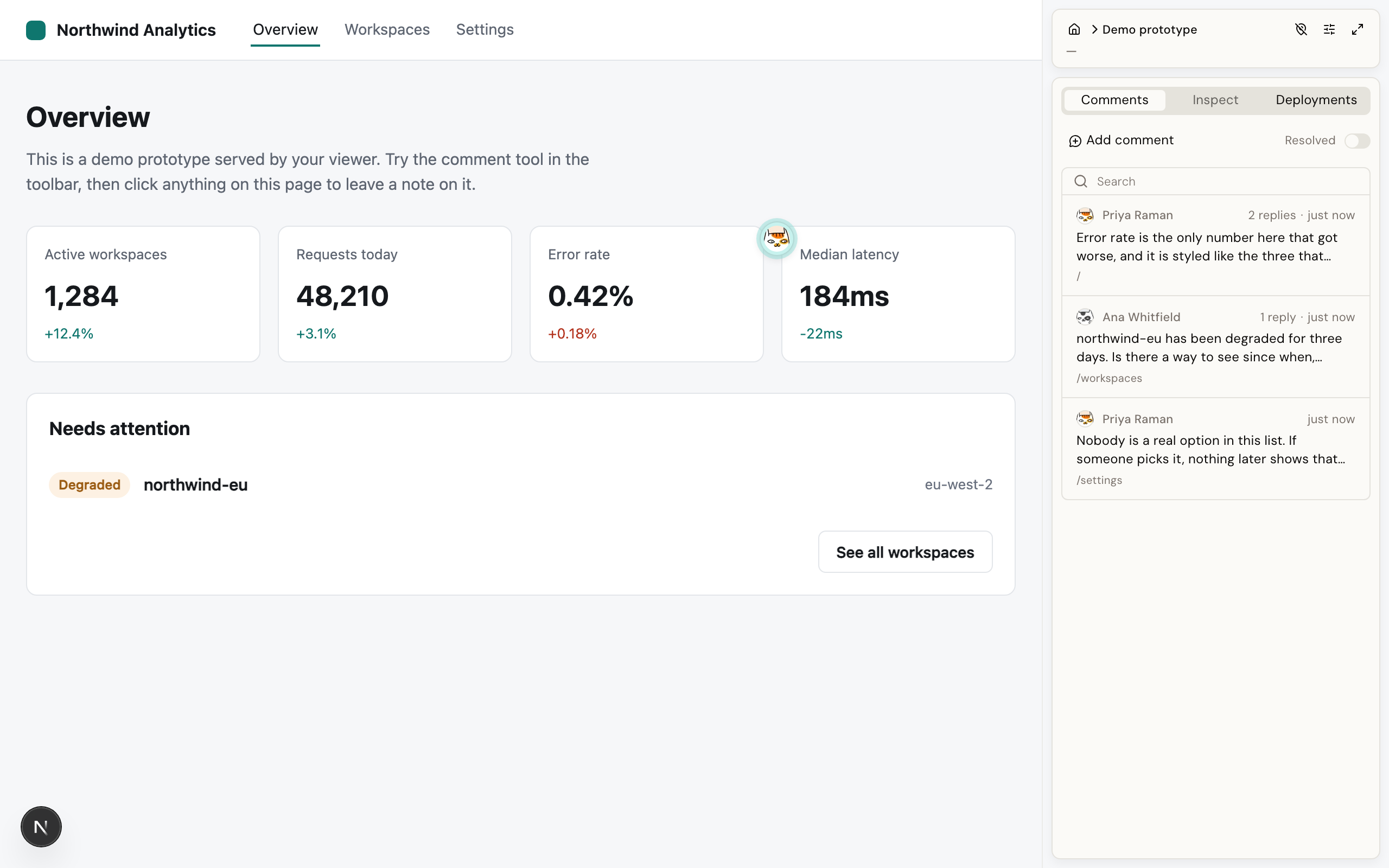
Open a prototype from the dashboard to reach its review page.
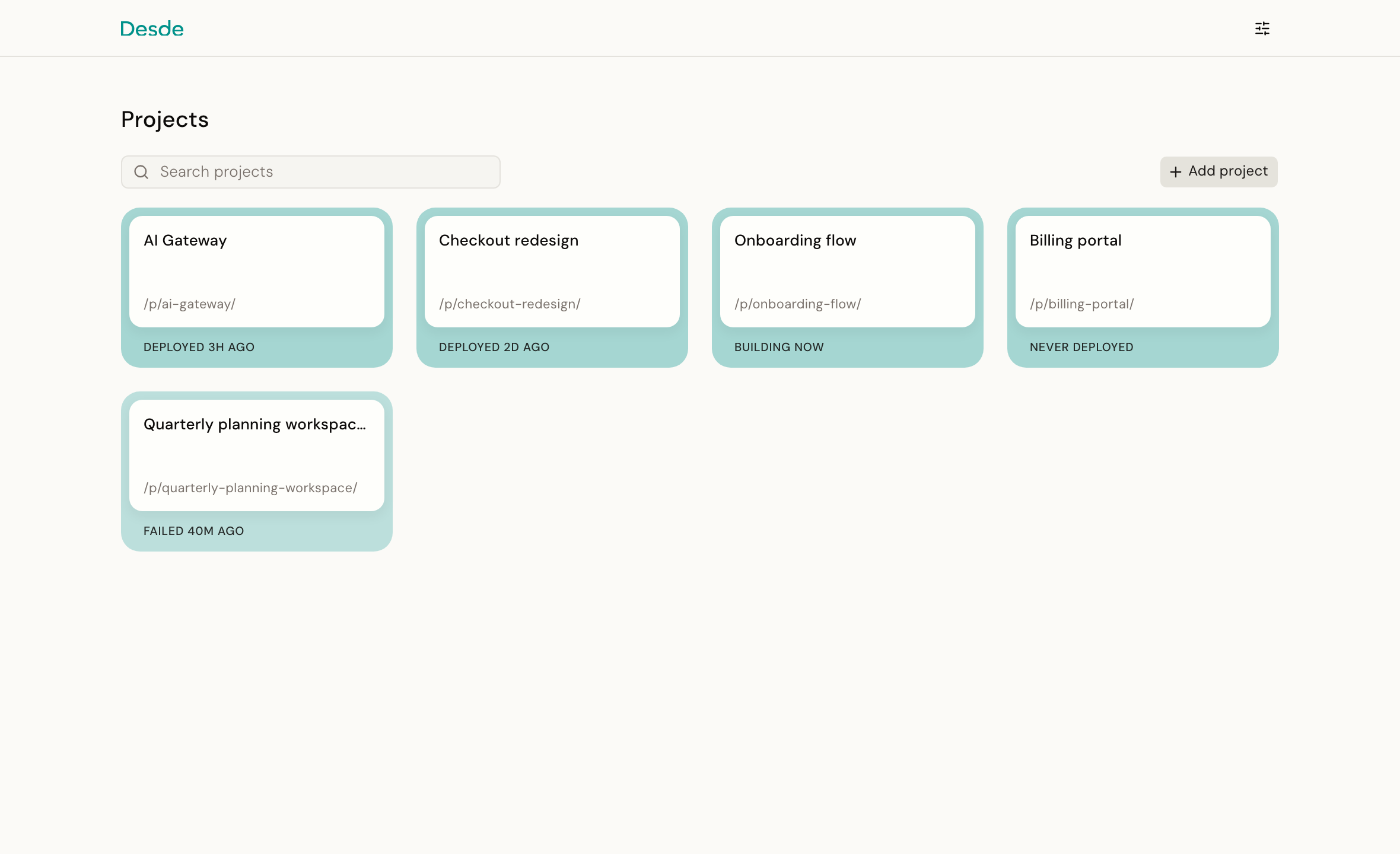
Note If a prototype has never been built, you still see the review page, but as a Never deployed message rather than the prototype. A prototype you are not allowed to open, or one that does not exist, shows a not-found page instead. See builds.
The screen#
Two parts, not a header and a body:
-
The prototype: fills the window. You navigate it exactly as you would the real app: click links, fill forms, move between routes.
-
The rail: a panel on the right. Its top row carries a link back to all projects, the project name, a toggle for comment pins, your account menu, and a collapse button. Access and Repository settings live inside that account menu. Below the top row are three tabs.
-
Comments: every visible comment, listed by number and first line, plus the Add comment button and the Resolved switch. This is the tab open by default, and the rest of this page describes it.
-
Deployments: the project's build history. See builds.
-
Inspect: a read-only look at an element's props, styles and source location. Click an element in the prototype to see it. There is nothing to edit here; making changes is the Editor's job.
Leaving a comment#
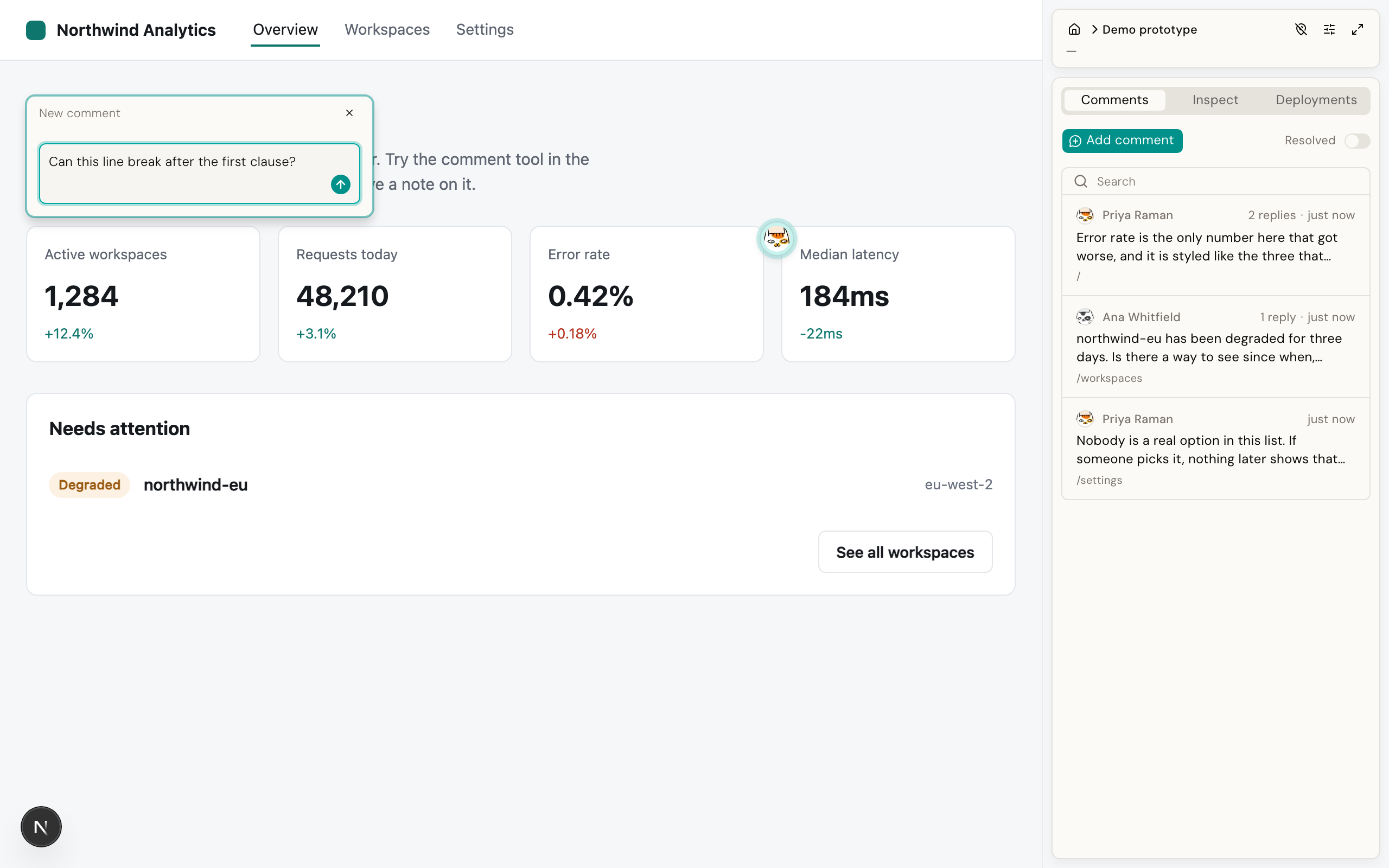
- Click Add comment in the Comments tab. The cursor inside the prototype becomes a crosshair.
- Click the element you want to talk about. A pin drops there and a compose card opens next to it.
- Type, and press the send arrow, or
Cmd/Ctrl+Enter.
A comment remembers the element you clicked and the page you were on, not a position on screen. That is the whole point of the design. If the layout shifts, the button moves, or the build changes its spacing, the comment still travels with the element instead of pointing at empty space.
If an element genuinely disappears, because it was deleted or renamed, the comment does not vanish. It quietly re-anchors nearby, with nothing in the interface to flag that it moved.
Pins render inside the prototype, so they scroll with the content.
Note "The page you were on" is the address in the address bar. If a dialog, a slideout or a step of a form opens without changing the address, comments cannot tell it apart from the page underneath, and a pin left on one of them will not come back. It is the most common reason a comment looks lost, and the fix is a small change to the prototype: a comment is missing, or shows up on the wrong screen.
Who you are#
If you are signed in with GitHub, comments are attributed to your account and you are never asked anything.
If you are not, which is common on a prototype shared by a public link, the first comment or reply opens a small "Who's commenting?" form asking for a name and, optionally, an email. That identity is remembered in your browser and reused. It is self-declared, so it is not verified.
A reply you typed before giving a name is not lost. It sends automatically once you save your name.
Authorship is decided by the server, not by your browser. A signed-in caller's comment is always attributed to their real account, and an anonymous caller cannot claim someone else's identity.
Replies and resolving#
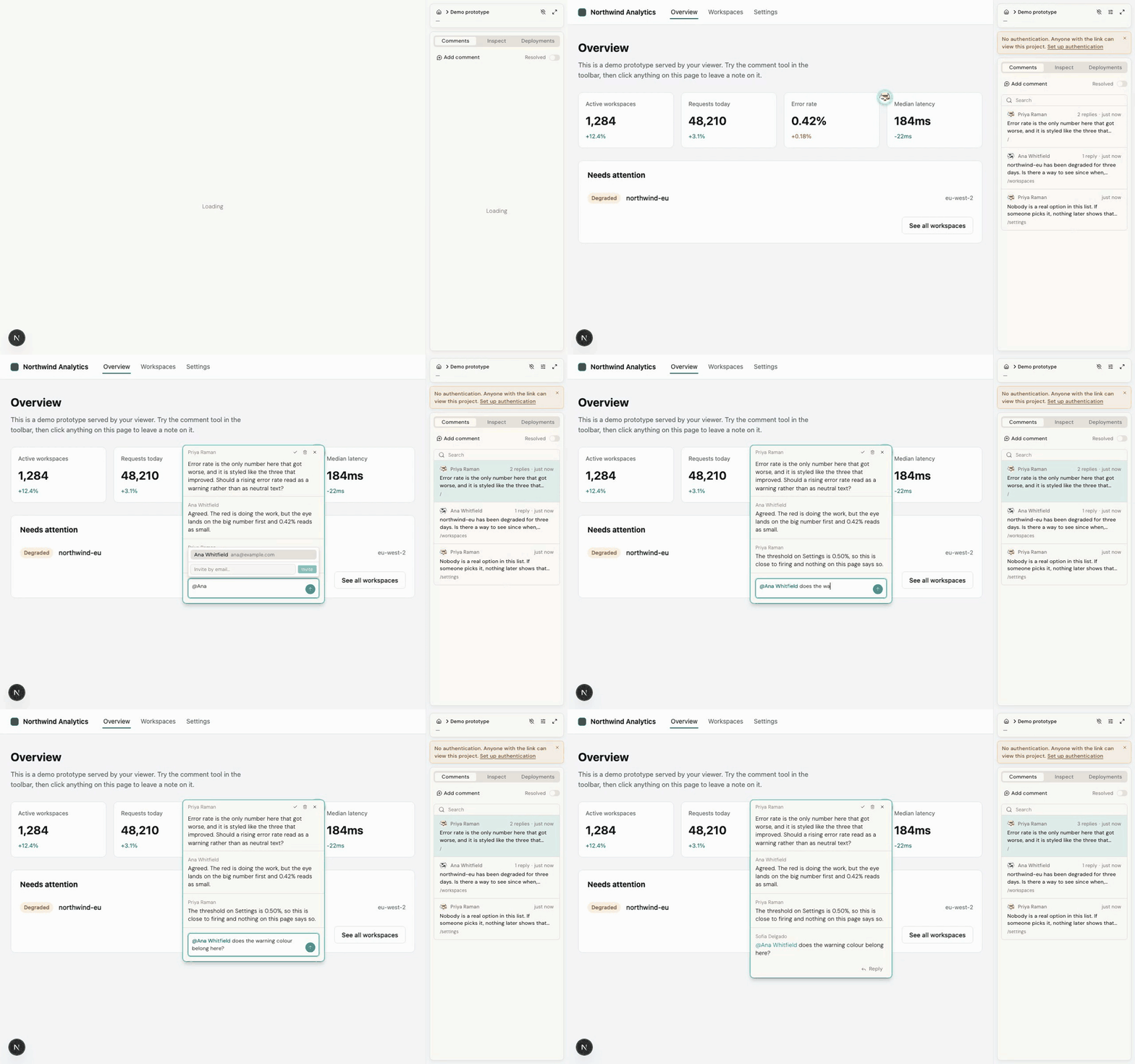
Click a pin, or a row in the rail, to open the thread. From there you can reply, resolve, or delete the comment.
Resolving does not delete anything. Resolved comments drop out of the rail and their pins disappear from the prototype until you turn on the Resolved switch at the top of the Comments tab, which brings both back. Resolving is a toggle, so anything resolved can be reopened.
Everyone looking at the same prototype sees changes live, without reloading the page.
Mentions#
Type @ in a new comment to open a picker over the project's participants: everyone who
has commented on this project, plus anyone invited by email from this same picker.
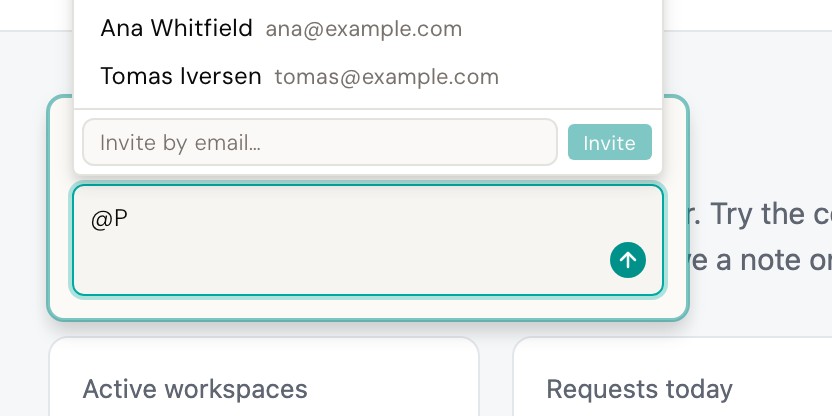
If the person you want is not there yet, use the Invite by email… field in the picker's footer. They are added and inserted as a mention in one motion.
Note The reply box has no picker. Replies use a plain text box, so typing
@Janethere is just text. It reaches nobody. To mention someone, do it from a new comment.
Note A participant is not a member. A participant is anyone in this project's mention directory. A member is someone allowed to open a project whose access is restricted. Adding a participant grants no access to anything. See members and tokens.
Notification emails#
If the person who set up the Viewer has configured outgoing email, each mentioned participant with an email address gets a message: who mentioned them, the comment text, and a link straight to the thread. Mentioning yourself sends nothing.
Every such email carries an unsubscribe link where one has been set up, both in the footer and as a standard header your mail client can act on. Unsubscribing is per project.
Without outgoing email configured, mentions still work: they highlight in the comment and the recipient sees them when they open the page. Nothing is emailed.
Editing a comment later to add a mention sends no notification. Post a new comment when you need to reach someone.
Who can comment#
Commenting is not a signed-in-only action. Anyone who can open the project can also comment on it and reply, including someone who was never asked to sign in, on a project shared by public link. That is by design, not an oversight.
Editing and deleting follow a different rule. A comment left without signing in can be edited or deleted by anyone who can open the project. A comment from a signed-in member can be edited or deleted only by its author, or by a member with manage rights on the project.
Anonymous commenting is on by default. An Admin can turn it off for the whole instance in Settings; anonymous visitors then get a sign-in prompt instead.
One timing detail worth knowing: removing someone's access to a project takes effect the next time their page reloads, not the instant it happens.
Good to know#
A comment or reply is capped at 10,000 characters, a thread at 500 replies, and a single comment at 20 mentions.
Next#
- Members and tokens: controlling who can open the review page at all.
- Serving: why a prototype might render blank or not found.
- Editor and Viewer together: syncing these comments back into an Editor session.