Editor guide
Ask the AI
Describe a change in words and the AI makes it in your source, with the prototype in view.
The Chat tab in the right rail is where you describe a change instead of clicking through it. Type what you want, and the AI reads your prototype, makes the change, and it lands in the same source files your other edits do. You can have several conversations open at once, each working on its own thing.
The AI only writes ordinary source files in your prototype. It will not create binaries,
.env files, or shell scripts. Every file it writes is recorded, and you can undo it from
Commit, branch and push.
Ask for a change#
Type in the box at the bottom of the tab and press Enter. Shift+Enter starts a new line instead of sending.
If you already have something selected in the prototype, it shows as a badge next to the box: the component's name, or how many things are selected. The AI can see that selection, so you can just say "make this wider" instead of describing which element you mean. Click the small × on the badge to remove the selection from the conversation.
You can also attach an image: paste one, drag it onto the box, or use the + button.
While the AI is working, the panel says what it is doing right now, such as "Reading App.vue…" or "Editing Button.vue…", instead of showing a plain spinner.
Keep typing while it works#
You do not have to wait for the AI to finish before you say something else. Type a new message at any time, even mid-turn, and press Enter. Nothing is dropped and the box never locks.
On an Anthropic model your message reaches the AI straight away, even mid-sentence. On the other providers it arrives at the next step, which in practice means once the file read, search or edit it is busy with finishes.
The AI decides what to do with it: answer straight away, finish what it was doing first, or fold your new message into the plan it is already running. A Stop button appears next to Send while a turn is running, so sending a new message never means stopping the current one first.
When the AI asks you a question#
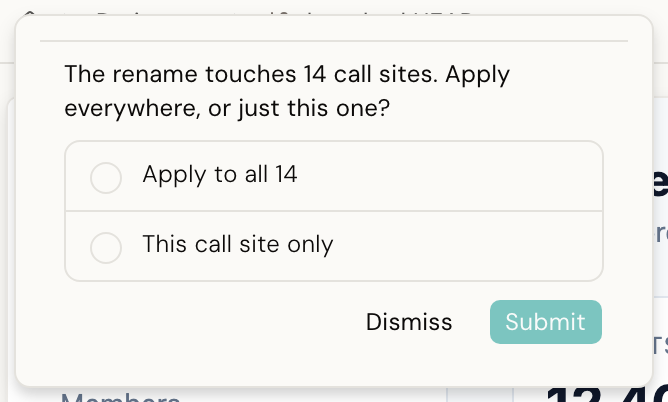
Sometimes the AI stops partway through and asks you to choose, instead of guessing. This happens when it needs a decision only you can make, such as which of two components you meant.
A short question appears above the input, with the real choices as cards.
Pick the answer you want, or, when more than one answer is allowed, check the ones you want. Either way, click Submit to send it. You can also Dismiss the question if you would rather not answer it; the AI treats that as "never mind" and carries on without that choice.
When two chats edit the same file#
Every conversation edits the same prototype. There is no separate copy of your code per chat. That is normally fine: most of the time you are only running one conversation at a time, or two conversations working on different files.
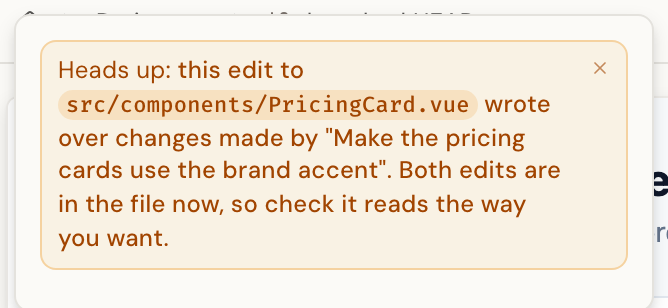
If two conversations do write to the same file, the second write goes through anyway, and a banner appears above the input:
Heads up: this edit to
src/components/Button.vuewrote over changes made by another chat session. Both edits are in the file now, so check it reads the way you want.
Nothing was blocked. Both edits are sitting in the file now, one after the other, so open the file and check it reads the way you want. If it does not, undo the part you do not want and ask again.
This check only catches a file that one chat read and another then changed underneath it. If you are doing two unrelated pieces of work, run them one after another. Avoid running them at the same time on the same part of the prototype.
Add a provider key#
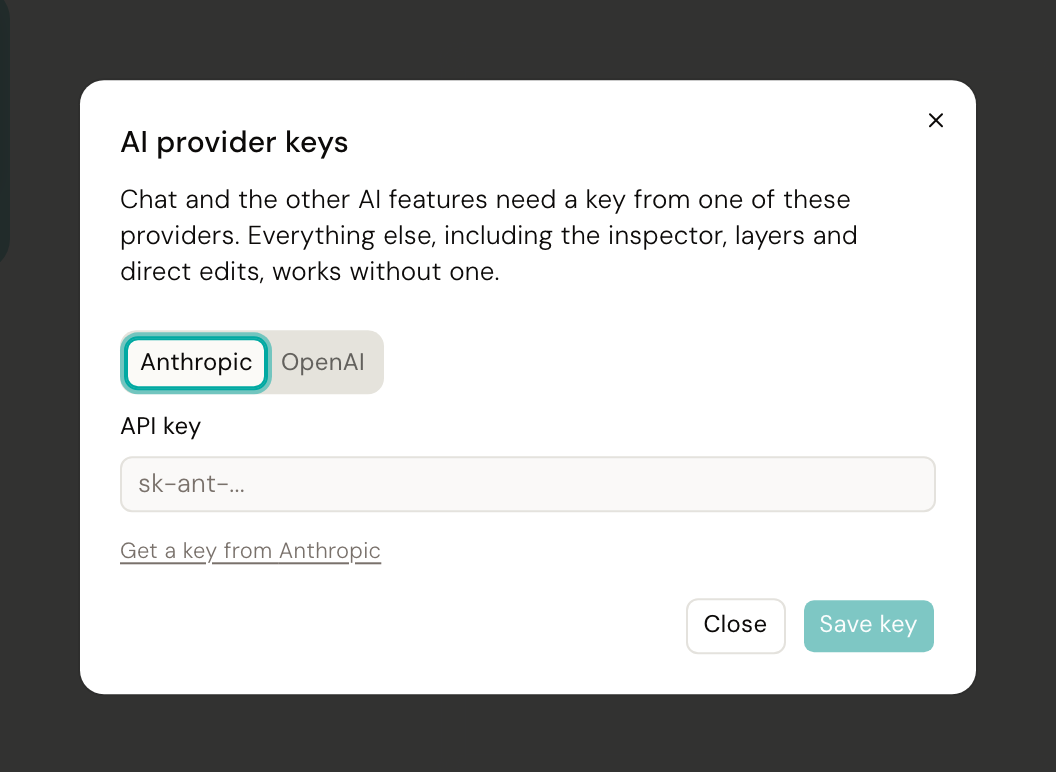
Chat needs an API key from one of the providers Desde supports: Anthropic or OpenAI. Everything else in Desde, including the inspector, comments, Commit and Publish, works without one.
Click the settings gear in the top bar and choose AI provider keys. There is a tab per provider: paste a key into the one you have and save. If you try to chat before adding one, Desde tells you exactly where to go.
Choose a model and effort#
A small chip near the input shows which model the conversation is using, and the effort it is set to when that model takes one. Click the chip to change either.
The menu lists one provider at a time. When you have keys for more than one, the row at the top of the menu names the provider you are looking at. Open that row and choose the other one to see its models instead. Choosing there only changes the list. The conversation keeps running the model it was already on until you pick a model, so looking at the other provider costs you nothing if you change your mind. Close the menu and it goes back to showing the provider your current model belongs to.
Below the models is an Effort slider: how hard the model works on your request before it answers. Its stops are that model's own levels, and it starts at medium. Some models have no effort levels, and for those there is no slider at all.
A faster model is enough for a small, clear request. For a large or fiddly change, pick a more capable model and raise its effort. Each conversation remembers its own choice, so a quick chat on a fast model and a long one on a capable model can run side by side.
This picker only applies to chat. The short AI pass that repairs a direct edit uses the default model of the provider your prototype is set up with.
Several conversations at once#
The bar above the messages holds a history button and a New button.
Click history to see your recent conversations and switch to one. Click New to start a fresh one. A dot next to a conversation in the list shows it is still working; a red badge shows it failed or has a file conflict to look at.
Switching conversations is safe. A conversation you switch away from keeps working in the background and keeps its own messages, so nothing gets mixed up when you come back to it.
Good to know#
Up to three conversations on a prototype can be working at the same time. A fourth waits its turn and shows "Waiting for an open chat slot" until one frees up.
Your provider's own usage limits still apply to your key. On an Anthropic model, Desde can see how close you are and tells you before you get there: "The usage limit for this Claude account is nearly reached (72% used). Limits reset in 38 mins. This turn is still running." Other providers do not report that, so the first sign is a turn that fails with a plain explanation of why.
If your provider's API is briefly unavailable, chat retries on its own and shows a short banner while it waits. You do not need to do anything.
See When Desde says no for the rest of what chat will refuse and why.
Next#
- Making changes: the direct way to change something, without chat
- Commit, branch and push: committing what chat wrote
- Design-system grounding: how the AI knows your real components, so it does not invent one