Get started
Try the Viewer
One command gets you a running Viewer with a demo prototype in it. Open it, leave a comment, see what your team would see.
The Viewer puts a working prototype at a URL your teammates can open, and lets them comment on it by clicking the thing they mean. This page gets one running on your own machine in about a minute, with a demo prototype already loaded, so you can see the review experience before you set anything up.
Nothing here is a real deployment. It is a look at the product. When you want one your team can actually use, go to Deploy the Viewer.
Prerequisites#
Docker, and nothing else. No accounts, no keys, no config file. Two steps to get it ready:
- Install Docker. On a Mac or a Windows PC, download Docker Desktop and install it. On Linux, install Docker Engine instead.
- Start Docker and leave it running. Open the Docker Desktop app and wait for its
status indicator to turn green. Installing it is not enough: the
dockercommand below talks to a background program that only runs while the app is open.
To check both at once, open a terminal. That is the Terminal app on a Mac, or PowerShell on Windows. Run:
docker versionYou want two blocks back, Client: and Server:. If you get Client: on its own,
followed by failed to connect to the docker API or Cannot connect to the Docker daemon, Docker is installed but not running. Open Docker Desktop, wait for it to come
up, and run it again.
Start it#
In that same terminal window, run this one command. The first time, it downloads the Viewer before starting it, so the first run takes longer than every one after it.
docker run --rm -p 3100:3100 -v desde-viewer:/data ghcr.io/desde-design/viewer:latestThe image is public, so there is no login step. It runs on Intel and Apple silicon.
Using Safari? It does not open .localhost addresses the way Chrome and Firefox do. Use
http://localhost:3100 everywhere this page says http://desde.localhost:3100, and add
-p 127.0.0.1:3101-3120:3101-3120 to the command above. See
Where prototypes are served for why.
Leave that running. It prints a page of startup notes, and the line you want is the last one: a link ending in a long token. That is your way in.
[viewer] No GitHub sign-in configured. Open the URL below in a browser to sign in. It is
[viewer] regenerated on every restart, and a session you already have survives a restart
[viewer] either way.

  http://desde.localhost:3100/api/v1/auth/local?token=...
Further up, a line saying it seeded the demo project means a prototype is already built and waiting for you.
Sign in#
Open that link in a browser. That is the whole sign-in. You land on the dashboard as an Admin, so nothing in the product is hidden from you.
The link keeps working for as long as this container runs, so you can open it on a second browser too. Restarting prints a new one, and a session you already have survives the restart either way.
Look around the demo#
Click Demo prototype on the dashboard. You get the review page: the prototype filling the window, and a comment rail down the right side.
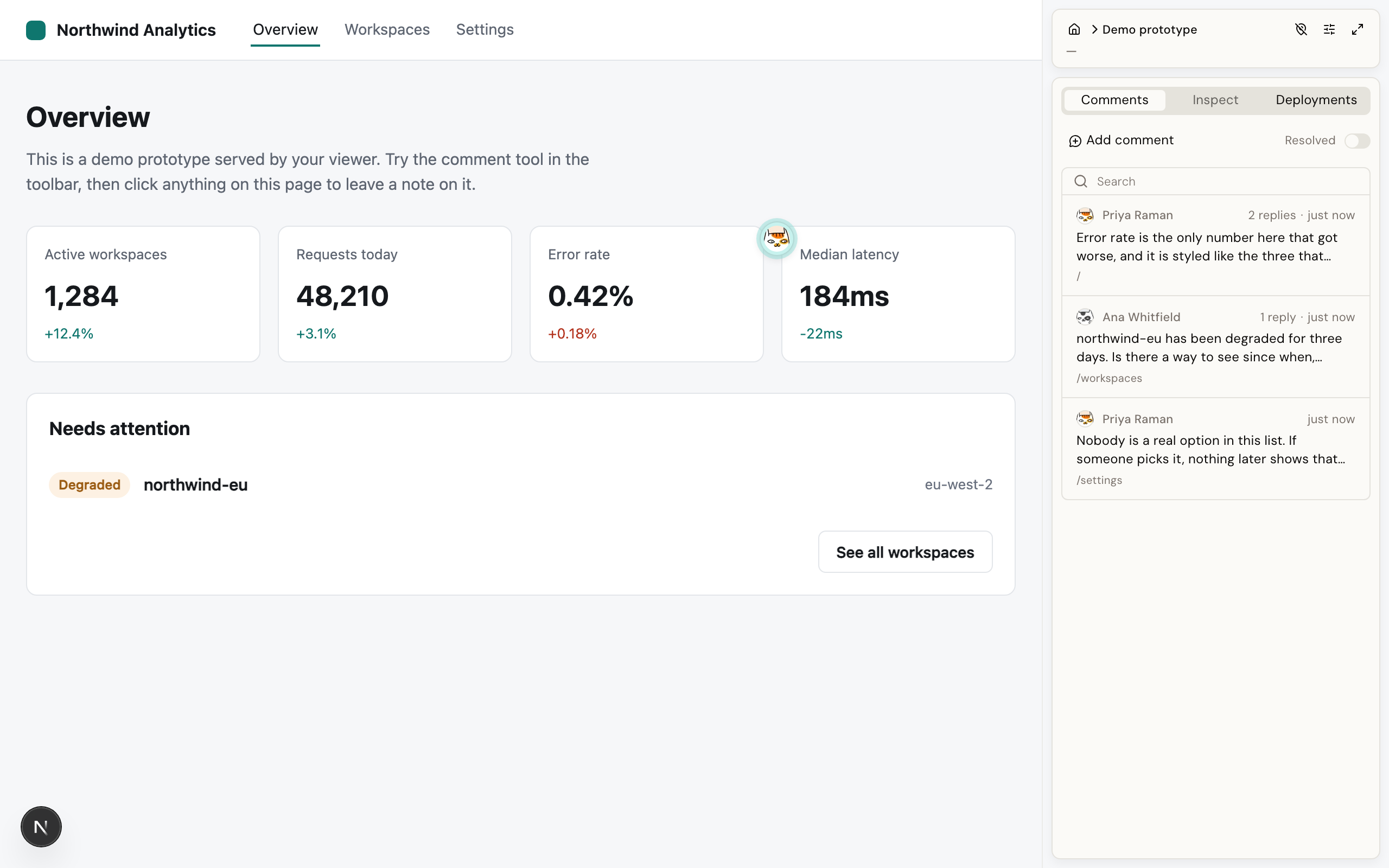
There are already comments in it, left by imaginary reviewers on real parts of the page. Click a row in the rail, or a pin in the prototype, to open that thread and read its replies.
The thing worth noticing is what a comment is attached to. It remembers the element it was left on, not a spot on the screen, so it still points at the right thing after the spacing changes or the button moves.
Leave your own#
Click Add comment in the rail. The cursor over the prototype becomes a crosshair. Click whatever you want to talk about, type into the card that opens next to it, and send.
That is what your reviewers do. They do not install anything, and they never touch the code.
Full detail on threads, replies, mentions and resolving is in Reviewing.
Stop it, and start it again#
Press Ctrl-C in the terminal running it. It shuts down cleanly and removes itself.
Everything the Viewer keeps lives in the desde-viewer volume named in that command, so
running the same line again picks up where you left off. Your comments are still there,
you are still signed in, and it prints a fresh sign-in link for anyone who needs one.
To throw it all away and start from nothing, delete the volume:
docker volume rm desde-viewerWhat this demo is not#
Worth knowing before you show it to anyone.
- Sign-in is not really set up. The demo prototype is readable by anyone who can reach it, with no account at all, and the Viewer says so in a banner on the review page. The printed link is an Admin account for whoever opens it. On a real deployment people sign in with GitHub and an admin decides who gets an account, which is the first thing Deploy the Viewer covers.
- It is on your own machine. Nobody else can open
desde.localhost:3100. Putting it somewhere your team can reach is what the deploy page is for. - The prototype is a fixture, not your app. Connecting a real repository needs a GitHub App, which takes a couple of clicks from inside the product once the Viewer is somewhere with a real address. See The GitHub App.
Next#
- Set it up for your team: Deploy the Viewer. Start there rather than growing this container into a deployment.
- Understand the review tools first: Reviewing.
- Use it alongside the Editor: Editor and Viewer together.