Viewer guide
Deploy a prototype
Connect a GitHub repository or upload a build, set the build commands, and get a link your team can review.
Each prototype the Viewer serves is a project: a URL slug, a connected GitHub repository or an uploaded build, a build configuration, and an access setting. Everything else (deployments, comments, the review page) hangs off it.
This page assumes you already have a Viewer running. If you don't, start with Deploy the Viewer.
Creating a project#
The dashboard has an Add project button. It opens a small dialog asking for a name and a URL slug; its confirm button says Add, not Create. That dialog then hands you to a second one, with two tabs: GitHub repo and Upload, for where the project's content comes from. See Connecting a GitHub repository and Uploading a build instead below. Only an Editor or an Admin sees the button; a Viewer cannot create projects. See instance roles for what each role can do.
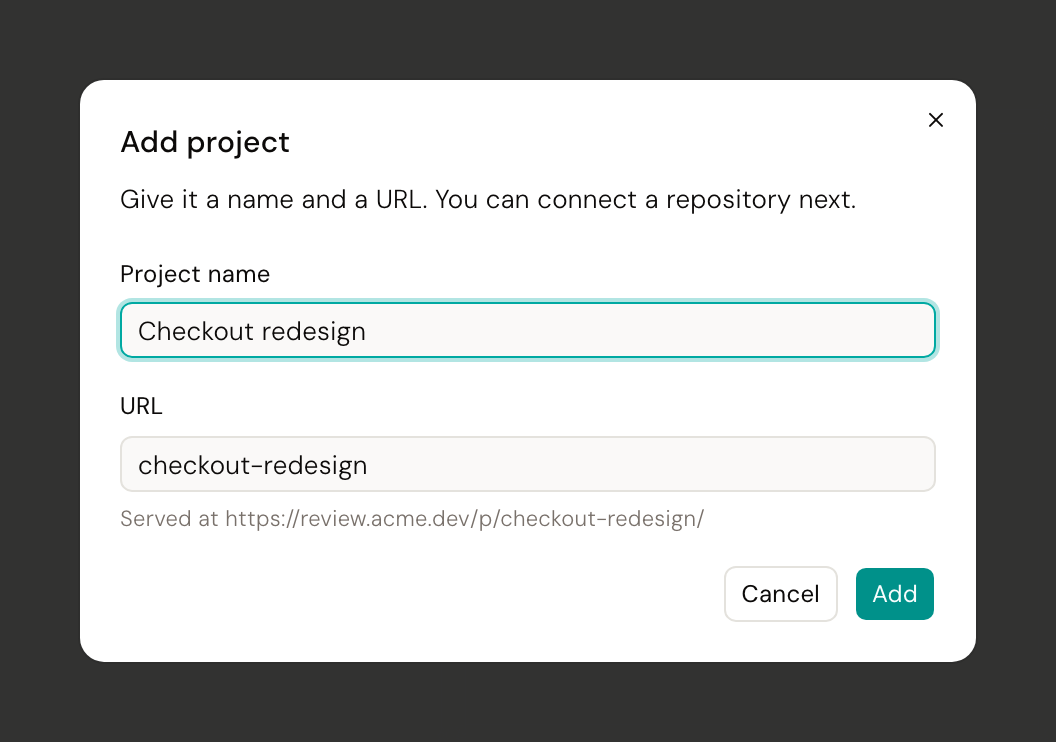
The same rule applies to the API. POST /api/v1/projects accepts the admin bearer (VIEWER_ADMIN_TOKEN), a signed-in Editor or Admin's own session, or one of their write-scoped personal access tokens. A signed-in Viewer, or a read-only token, gets 403.
curl -X POST http://localhost:3100/api/v1/projects \
  -H "Authorization: Bearer dsv_your_token_here" \
  -H "Content-Type: application/json" \
  -d '{"slug":"acme-checkout","name":"Acme Checkout"}'
A 201 comes back with the created project, including its id. Keep the id. The rest of the API is keyed on it, not on the slug.
The fields:
| Field | Required | Rules |
|---|---|---|
slug |
yes | 2 to 63 characters, lowercase letters, digits and hyphens, starting with a letter or digit. Becomes the serving path /p/{slug}/. |
name |
yes | Free text, must not be blank. What people see in the dashboard. |
access |
no | all-members (the default), invited, or public-link. See members and tokens. |
repoUrl |
no | A string stored on the project. This is not what connects a repository (see below). |
A slug that is already taken is not refused: the viewer appends a numeric suffix (checkout-redesign becomes checkout-redesign-2) and the response carries the slug it actually used. Read the slug off the response rather than assuming your requested one. An invalid slug or a blank name returns 400 with a message naming the problem. Setting access: "public-link" while the instance's allowPublicLinks setting is off returns 409 Public links are disabled on this viewer.
Who can manage a project#
There is no per-project ownership. Whether you can rename a project, connect a repository, trigger a build, or manage its access list comes entirely from your instance role: Admin can manage every project; Editor can manage any project they can already read; Viewer can manage none.
Since a new project's default access is all-members, any Editor or Admin can read it immediately, so this rarely comes up. It matters only if you create a project with access: "invited": the server automatically adds you to its access list unless you're already an Admin (who doesn't need to be listed), so you can still read and manage the project you just made.
The review page before there is a deployment#
/review/{slug} resolves the project and checks whether it has an active deployment. A project you cannot read, or that does not exist, still gets the app's not-found page, same as always. A project you can read but that has never been built or had a bundle uploaded gets a Never deployed page instead of the review screen: everyone who can read the project sees that page, and anyone who can also manage the project gets a Connect a repository button on it. Before 2026-09-01 an unbuilt project 404'd too, even for an admin, even though the project existed and appeared on the dashboard. That changed because a 404 reads as a permissions problem, and the real story was simply that nobody had built anything yet.
The Repository and Access panels (the account-menu dropdown in the rail calls them that; "Access" replaced the older "Members" label) open from the account menu in the review page's rail. They only appear once the project has a deployment, so a freshly created project has no Repository or Access panel yet; its review page shows the Never deployed state above instead. That is not a dead end: the dashboard itself gets you there.
Every project's card has a ⋮ menu with a Settings item, but only if you can manage projects (an Editor or Admin). A Viewer-role account does not get a disabled menu; the menu is not there at all. On an undeployed project, Settings opens the same repo-connect panel the review page's Repository menu item opens later, no deployment needed. Clicking the card itself does something slightly different: for an undeployed project it reopens the Add-project wizard at the source step, the same GitHub repo / Upload choice from when you created it, so you pick up where you left off rather than starting over.
Uploading a build instead#
A project does not need a connected repository at all. The wizard's Upload tab takes a .tar.gz of your build output directly, with index.html at its root, and needs no GitHub App configured on the server. This is what makes a project possible on a deployment with no GitHub App at all.
The same endpoint is reachable from the terminal or a script, if you would rather post the archive directly:
tar -czf - -C dist . | curl -X POST "http://localhost:3100/api/v1/projects/PROJECT_ID/deployments" \
  -H "Authorization: Bearer dsv_your_token_here" \
  --data-binary @-
The archive does not have to put index.html at its root. The server looks in three places, in order:
- The root itself. If
index.htmlis there with nopackage.jsonnext to it, that root is used as-is. - A known build-output folder, searched recursively:
dist,build,out,_site, orwww. This also finds a nested case like Angular'sdist/<app>/browser. - A single wrapper folder. If the archive contains one folder and nothing else at the top level (for example you ran
tar -czf x.tar.gz distinstead oftar -czf x.tar.gz -C dist .), the server looks one level down.
Stray files like .DS_Store or __MACOSX/ are ignored throughout. If none of the three finds an index.html, the upload is rejected. On success the deployment becomes the project's active one immediately, and /review/{slug} opens right away.
Connecting a GitHub repository#
Connecting a repository is what makes builds possible. It records which installation, which repo, which branch, and the commands to run.
Two things must be true first: the deployment has a GitHub App configured, and you hold Editor or Admin authority and can already read the project. Without the App the route answers 400 ("GitHub App is not configured on this deployment"); without manage authority it answers 403, or 404 if you cannot read the project at all.
From the UI#
Open /review/{slug}, open the account menu and click Repository, and work through the wizard: choose a GitHub App installation, choose a repository inside it, then fill in the build form and press Connect.
Note The list of installations you can pick from is a snapshot taken when you signed in. If you install the App on an organization while already signed in, it will not appear. Click Refresh GitHub access to sign in again and update it.
From the API#
curl -X PUT http://localhost:3100/api/v1/projects/PROJECT_ID/repo \
  -H "Authorization: Bearer dsv_your_token_here" \
  -H "Content-Type: application/json" \
  -d '{
    "installationId": 12345678,
    "owner": "acme",
    "name": "checkout-prototype",
    "branch": "main",
    "installCommand": "npm ci",
    "buildCommand": "npm run build",
    "outputDir": "dist",
    "autoDeploy": false
  }'
The server does not trust installationId, owner or name just because they are well-formed. It checks that the installation is one your account can see, and that the repository is actually in that installation's repo list. A forged id and someone else's real installation get the same refusal, so the response cannot be used to probe which installations exist.
Build command and output directory#
The wizard pre-fills sensible defaults for a Vite project:
| Field | Default | What it is |
|---|---|---|
| Branch | the repository's default branch | Which branch gets cloned and built. |
| Install command | npm ci |
Run first, in the checkout root. |
| Build command | npm run build |
Run second, in the checkout root. |
| Output dir | dist |
Where the finished static files land, relative to the repository root. |
| Auto-deploy on push | on | Whether a push to that branch triggers a build. This only sets the default for a fresh connection. Editing an existing connection keeps whatever it was already set to. See builds. |
Both commands run through a shell, so npm ci && npx patch-package works. Each is capped at 2000 characters.
outputDir is deliberately strict, because it is later joined against the checkout root to find files to serve. It must be a repository-relative path made of letters, digits, ., _, / and -. No leading slash, no drive letter, no .. segment, and not a bare .. Pointing the output at the repository root would serve your whole repo, including .git, over HTTP.
branch is checked against git's own refname rules: letters, digits, ., _, / and -, not starting with -, and no ...
Changing a project later#
PATCH /api/v1/projects/{id} updates name, repoUrl and access. The slug cannot be changed. As with create, this needs Editor or Admin authority: the admin bearer, a signed-in Editor or Admin's own session, or one of their write-scoped tokens. A token only works if its owner can already read the project.
Disconnect (the button in the Repo dialog, or DELETE /api/v1/projects/{id}/repo) clears the repository configuration only. Existing deployments keep serving, and the project stays reachable at /p/{slug}/.
Things to know#
- There is no
GET /api/v1/projects/{slug}route. Lookup by id only. To find a project by slug, fetchGET /api/v1/projectsand match client-side. That is what the review page itself does. - The project list is filtered, not gated. A project you cannot read is simply absent from the list rather than causing an error.
- Every project response carries
accessdirectly. There is no derived "is this secretly public" flag any more. Apublic-linkproject readsaccess: "public-link"whether or not the instance'sallowPublicLinkssetting currently serves it that way. CheckGET /api/v1/instance/settingsfor the switch itself. - Connecting a repo adopts the project id in
.desde/config.json, if the repository has one on its default branch. If a different project already claims that id, the connect still succeeds and the response includes anidentityConflictfield instead of failing. This is how an Editor checkout and a Viewer project recognize each other. - Every build or upload is scanned for root-absolute asset URLs, the kind of reference most bundlers (Vite, Create React App, Next static export, Astro, Nuxt, Parcel) emit by default and that can break a project for signed-in members under path serving: see Serving: "May not load fully" for the mechanism. The result is recorded on the deployment (
warningsinGET /projects/:id/deployments) whether or not it currently applies, and the Repo dialog's Build panel shows a warning only when it actually would: path serving, and a project that is not genuinelypublic-link. The one-line fix is a relative build base (Vite:base: './'; Create React App:"homepage": ".") or subdomain serving (VIEWER_SERVE_DOMAIN).
Origin isolation and your project's access setting#
The Viewer serves a prototype from one of four origin modes (loopback, subdomain, prototype-origin, or fallback), decided from the deployment's own config, not from anything on the project. See Where prototypes are served for the full picture.
One place the mode does interact with a project: on a deployment running subdomain mode, a public-link project is servable at its {slug}.{VIEWER_SERVE_DOMAIN} address with no credential needed. An all-members or invited project is servable there too, using a short-lived capability carried on the document load and then held in a cookie scoped to that subdomain. See Where prototypes are served for how that capability works, and for the one setup requirement it depends on (VIEWER_SERVE_DOMAIN must be same-site with VIEWER_PUBLIC_URL).
Next#
- Builds: how a build actually runs, and what makes one fail.
- Members and tokens: who can see the project, and how to mint the token this page needed.
- Serving: what the URL
/p/{slug}/does, and when to use subdomains instead. - Where prototypes are served, for the four origin modes in full.