Editor guide
Comments on the prototype
Leave a comment pinned to anything in the prototype, reply, resolve, and hand it to the AI to fix.
The Comments tab in the right rail holds remarks pinned to a specific thing in your running prototype, not to a page in general. Reply to a comment, resolve it when it is done, and hide the pins when you want a clean view. Connect the Editor to a Viewer and the same comments show up there too. A reviewer working in the Viewer and you working in the Editor are looking at the same conversation.
This is useful because the most useful thing to say about a prototype is usually about one particular thing on one particular screen. Saying it in a chat message loses that. A pinned comment does not.
Leave a comment#
Pick Comment from the Prototype tool picker in the toolbar, or click the Comment button at the top of the Comments tab. Both open the same mode.
Click the thing you want to comment on. A card opens next to it. Type your comment and send it.
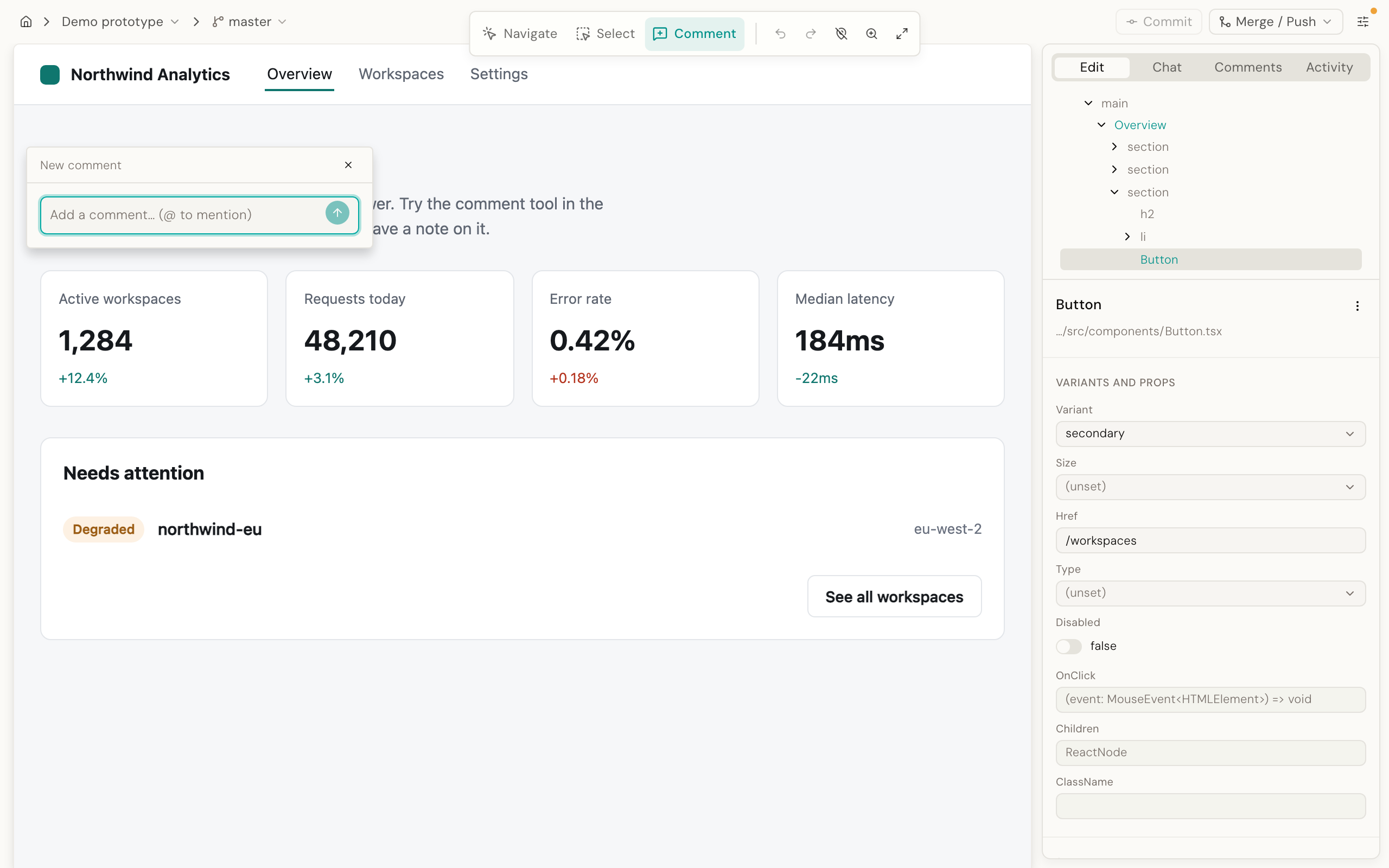
The pin is attached to that element, not to a position on the screen. If the page changes shape later, the pin moves with the element instead of staying at the old spot.
Reply and resolve#
Click a pin to open its thread. Add a reply the same way you would in any comment thread. The list shows every comment on the prototype, newest at the top, so you can scan what still needs an answer without clicking through the prototype pin by pin.
When the point is settled, click Resolve. Resolved comments are hidden from the list by default. Turn Show resolved on, in the tab's menu, to see them again.
Clicking a pin in the prototype opens that thread right there, beside the pin, so you can read and reply without going to the rail at all.
Hide the pins#
A Hide switch at the top of the tab hides every pin in the prototype without deleting any of them. Turn it back on and every comment is exactly where you left it.
A comment never just disappears#
If the element a comment was pinned to is removed or changes so much that Desde can no longer find it, the comment does not vanish. It is marked off-target in the list, with a pin icon that has a line through it, and it stays visible so you can still read it and decide what to do.
Note A pin that never comes back usually means two screens share one address. A dialog, a slideout or a step of a form that opens without changing the address looks like the page underneath, so a comment left on either one cannot find its way home. The comment is still in the list, and the fix is a small change to the prototype: a comment is missing, or shows up on the wrong screen.
Fix with AI#
Open a thread and click Fix with AI. This sends the comment, the words in it, the element it is pinned to, and the page it is on, straight to chat as a starting message.
It is a shortcut for handing a comment to the AI, not an automatic fix. You still watch the AI work in the chat panel, the same way you would for anything else you ask it.
Comments and a connected Viewer#
By default, comments stay on your own machine. Connect the Editor to a Viewer, the shared place your team reviews prototypes, and comments sync both ways automatically: you see what reviewers wrote there, and they see what you wrote here.
If no Viewer is connected yet, the Comments tab says so in place of an empty list, and explains that anything you write stays on this machine for now. See Editor and Viewer together for how to connect one.
If a Viewer is connected but this machine does not have a token for it yet, the tab tells you that too. A token is what lets this machine talk to that Viewer. Add one from the project menu: it reads Connect to viewer… when no Viewer is set, and Change viewer… once one is.
Good to know#
Each comment shows who wrote it. On the Editor, that is your machine's own identity, or "Local user" if Desde cannot work out who you are.
The Editor is single-user, on one machine. Two people cannot comment on the same running Editor at the same time. For a team reviewing together, connect a Viewer: that is what it is for.
Comments are saved in a .desde folder inside the prototype. Git ignores that folder, so
comments do not travel with your commits unless you add them on purpose.
Right after the Editor starts, there is a short moment where it does not yet know whether this prototype is connected to a Viewer. If you try to place a comment in that window, it is refused with a message asking you to try again in a moment, rather than saving it to the wrong place. If instead it cannot tell where comments should be saved at all, placing one is refused with a message asking you to reload the page and try again.
Notes: an optional, private-only variant#
Notes are a second kind of pinned remark that behaves exactly like a comment, except a note never leaves your machine, even when a Viewer is connected. Notes are off by default. Turn them on from Editor configuration if your team wants a private, working kind of remark alongside shared comments.
Next#
- Editor and Viewer together: connect a repo to a Viewer, so comments sync
- Ask the AI: where Fix with AI hands off to
- A tour of the Editor: the rest of the right rail