Editor guide
Updating the Editor
The Editor keeps itself up to date. What it does on its own, what it asks you first, and how to check by hand.
The Editor updates itself. Most of the time there is nothing to do: it finds a new version, downloads it quietly, and puts a dot on the settings gear when it is ready for you.
This page is about the Mac app. If you run the Editor from a copy of the source instead, skip to running from a checkout.
What it does on its own#
It looks for a new version when you open it, and then every four hours while it stays open.
When it finds one, it downloads it in the background. You are not asked and nothing is interrupted. You can turn that off if you would rather decide each time.
Once the download is finished, a small dot appears on the settings gear. That dot is the only thing the Editor does to get your attention. It does not interrupt you, and it never restarts on its own.
Installing it#
Open the settings gear and choose Restart to update.
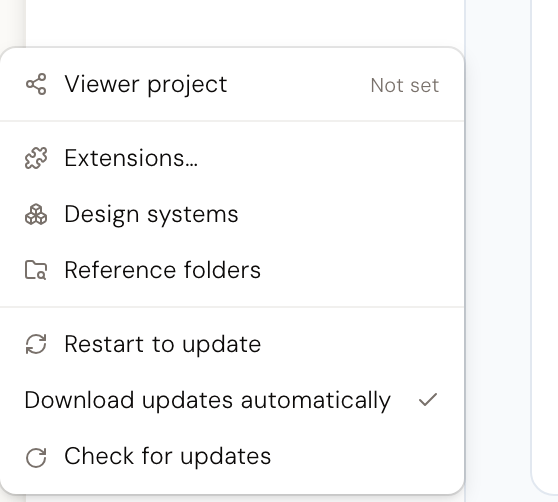
You do not have to do it now. If you ignore the dot and quit the Editor normally, the update is applied the next time you open it. Restarting is just the faster way to get there.
When you do restart, the Editor closes and reopens on its own. This can take a minute. Leave it alone while it works. Opening the app again yourself in the middle stops the install, and you have to start it over.
If the AI is in the middle of a reply, the Editor asks before restarting, because restarting stops it partway.
Your work is not at risk#
The Editor writes every change straight into your files as you make it. There is nothing held inside the app waiting to be saved, so an update cannot lose your work. Uncommitted changes are still sitting in your project afterwards, exactly as you left them.
The one thing an update does interrupt is a reply the AI has not finished. Ask again after the restart.
Checking by hand#
You should not need to, but the gear menu has Check for updates if you want to know now.
It opens a window that follows the check through: looking, then either Up to date with the version you are on, or the new version with a button to download it, then its progress, then the offer to restart. You can close that window at any point. A download that has started keeps going.
Which version you have#
Open the Desde menu at the top left of the screen and choose About Desde.
The version is on that panel. Check for updates also names it when it tells you that you are up to date.
Downloading only when you say so#
The gear menu has a Download updates automatically switch. Turn it off and the Editor still checks, and still tells you when there is something new, but it waits for you to click Download update before it uses your connection.
Everything after the download is the same either way. Nothing installs until you restart or quit.
When an update does not work#
Two different failures, and the wording tells you which one you have.
Update check failed means it could not reach the update service. This is almost always the network: a VPN, a company proxy, or being offline. Try again when the connection is back.
Update failed means it found the new version but could not finish. Try once more first. If it keeps failing, install the new version by hand: it is the same app, and nothing about your projects or settings is affected.
Quit the Editor first. Then open the download and drag Desde to Applications, replacing the copy that is already there. Every version, with its notes, is on the releases page.
Your projects, your settings and your AI provider keys are all kept outside the app, so replacing it this way loses none of them.
Note The Mac app is built for Apple silicon. There is no Intel build, so on an Intel Mac, run the Editor from a checkout instead.
Running from a checkout#
If you run the Editor from a copy of the source, none of the above applies: nothing checks for you and nothing updates itself. Updating is a pull and a rebuild.
git pullnpm install && npm --prefix editor-cli installnpm --prefix editor-cli run build:uiStop the Editor before you do this and start it again afterwards. The rebuild is what makes the new version's screens appear; a pull on its own changes nothing you can see.